What Is a QR Code? How to Generate One for 2FA Setup
That QR code you scan during 2FA setup isn't just a link — it's carrying a cryptographic secret that lets your phone generate security codes forever. Here's what's inside it, and how to generate your own.
QR Codes Are Everywhere — But Most People Don't Know What's Inside Them
You've scanned hundreds of QR codes. Restaurant menus, payment apps, product packaging, event tickets. You point your phone, it does something, and you don't think twice about it.
But when it comes to setting up two-factor authentication, that same QR code is doing something much more interesting. It's not just a link. It's carrying a secret — a cryptographic key that will allow your phone to generate security codes forever, without ever contacting the internet again.
Understanding what's actually in that QR code changes how you think about 2FA security. And knowing how to generate one yourself gives you a level of control that most people never have.
What Is a QR Code, Really?
QR stands for Quick Response. It's a two-dimensional barcode — a grid of black and white squares that encodes data visually. Unlike a traditional barcode that can only hold about 20 characters, a QR code can store up to 4,000 characters of text.
When your phone's camera reads a QR code, it's just reading text. That text could be a URL, a phone number, a Wi-Fi password, payment information, or — in the case of 2FA setup — a specially formatted string that tells your authenticator app everything it needs to know to start generating codes.
The QR code itself isn't doing anything magical. It's just a very efficient way to get a long string of text from a screen into your phone without typing it manually.
What's Inside a 2FA QR Code?
When you enable two-factor authentication on a website and it shows you a QR code to scan, that code contains a URI (a web address-like string) in a specific format called the Key URI format. It looks something like this:
otpauth://totp/Google:user@gmail.com?secret=JBSWY3DPEHPK3PXP&issuer=Google
Breaking that down:
otpauth://totp/ — tells the app this is a TOTP (time-based one-time password) secret
Google:user@gmail.com — the account name, so you know which account this code is for
secret=JBSWY3DPEHPK3PXP — the actual cryptographic secret key, encoded in Base32
issuer=Google — the service name, shown in your authenticator app
That secret key is the whole thing. Once your authenticator app has it, it can generate the correct 6-digit code every 30 seconds — forever — without any internet connection.
Why Would You Need to Generate a QR Code?
Most people only ever scan QR codes that websites generate for them. But there are several situations where you'd want to generate one yourself:
Setting up 2FA on a new device — if you need to add your account to a second authenticator app or a new phone
Testing your 2FA setup — verifying that your secret key is correct before committing to it
Creating QR codes for your own app or service — if you're a developer building 2FA into your product
Sharing Wi-Fi credentials — QR codes work for Wi-Fi passwords too, making it easy for guests to connect without reading out a long password
Creating URL shortcuts — print a QR code that opens your website, social profile, or any link
How to Generate a QR Code for 2FA
The QR Code Generator at 2FA.AC handles all three use cases — 2FA secrets, URLs, and plain text. Here's how to use it for 2FA specifically:
Step 1 — Get your 2FA secret key
When a website shows you a QR code during 2FA setup, look for a link that says something like "Can't scan? Click here" or "Enter manually." Clicking it reveals the secret key as a text string — usually 16-32 characters of letters and numbers, like JBSWY3DPEHPK3PXP.
Copy that key. This is what you'll use to generate your own QR code.
Step 2 — Open the QR Code Generator
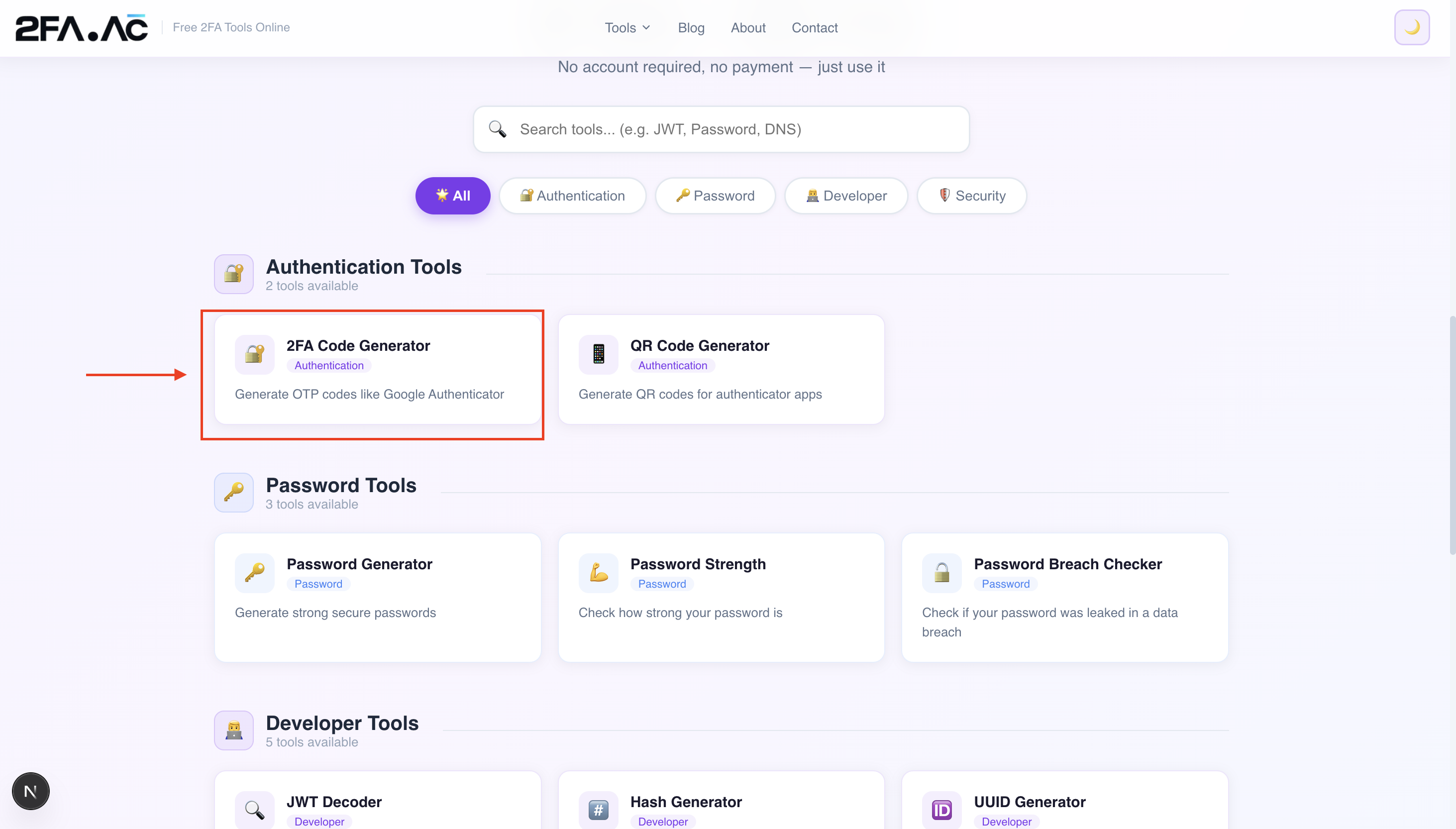
Go to 2FA.AC's QR Code Generator. Select "2FA Secret" as the type — this tells the tool to format your key correctly as a TOTP URI rather than just encoding the raw text.
Step 3 — Paste your secret key
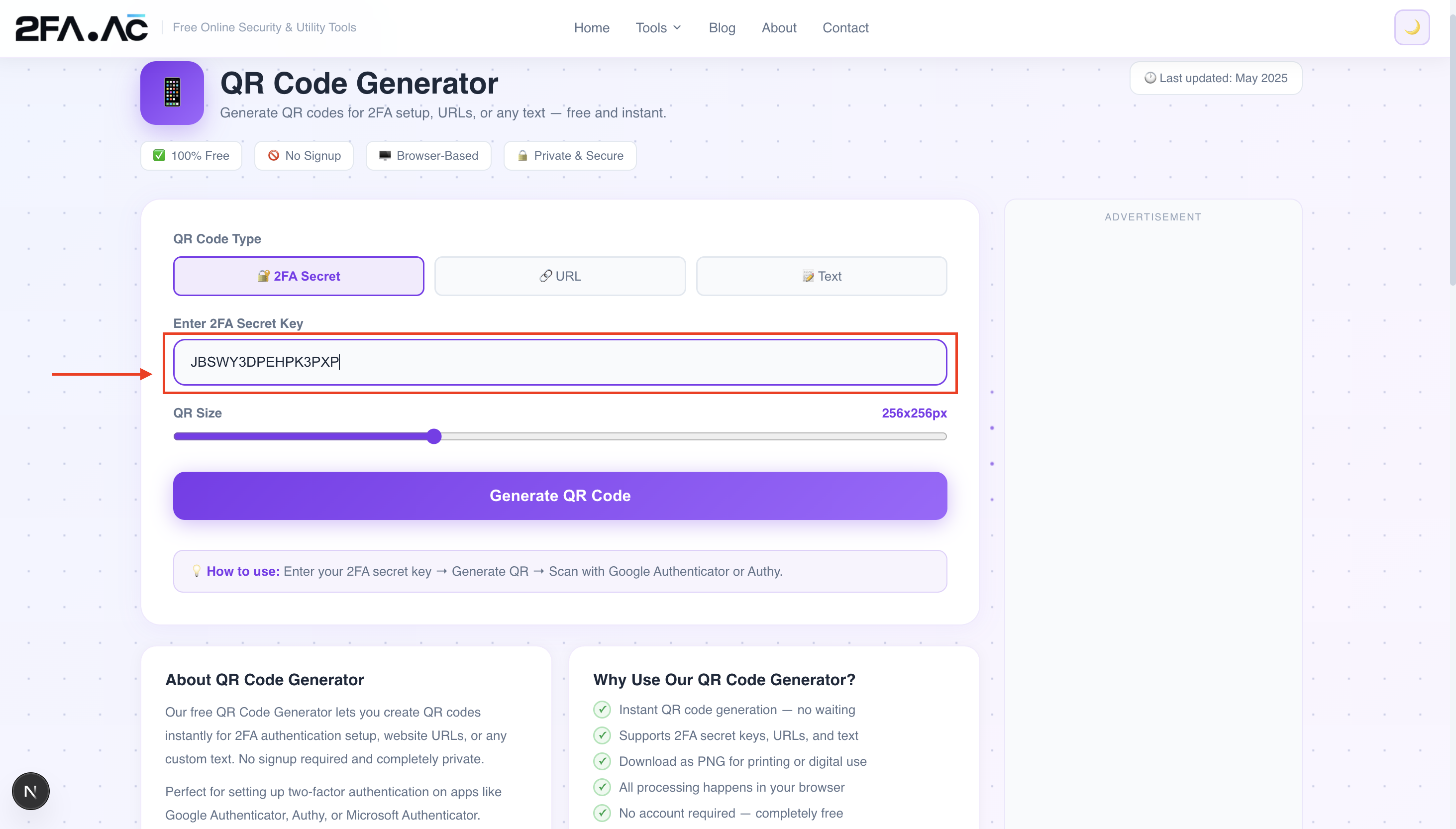
Paste your secret key into the input field. You don't need to format it or add anything — the tool handles the URI formatting automatically.
Step 4 — Generate and use
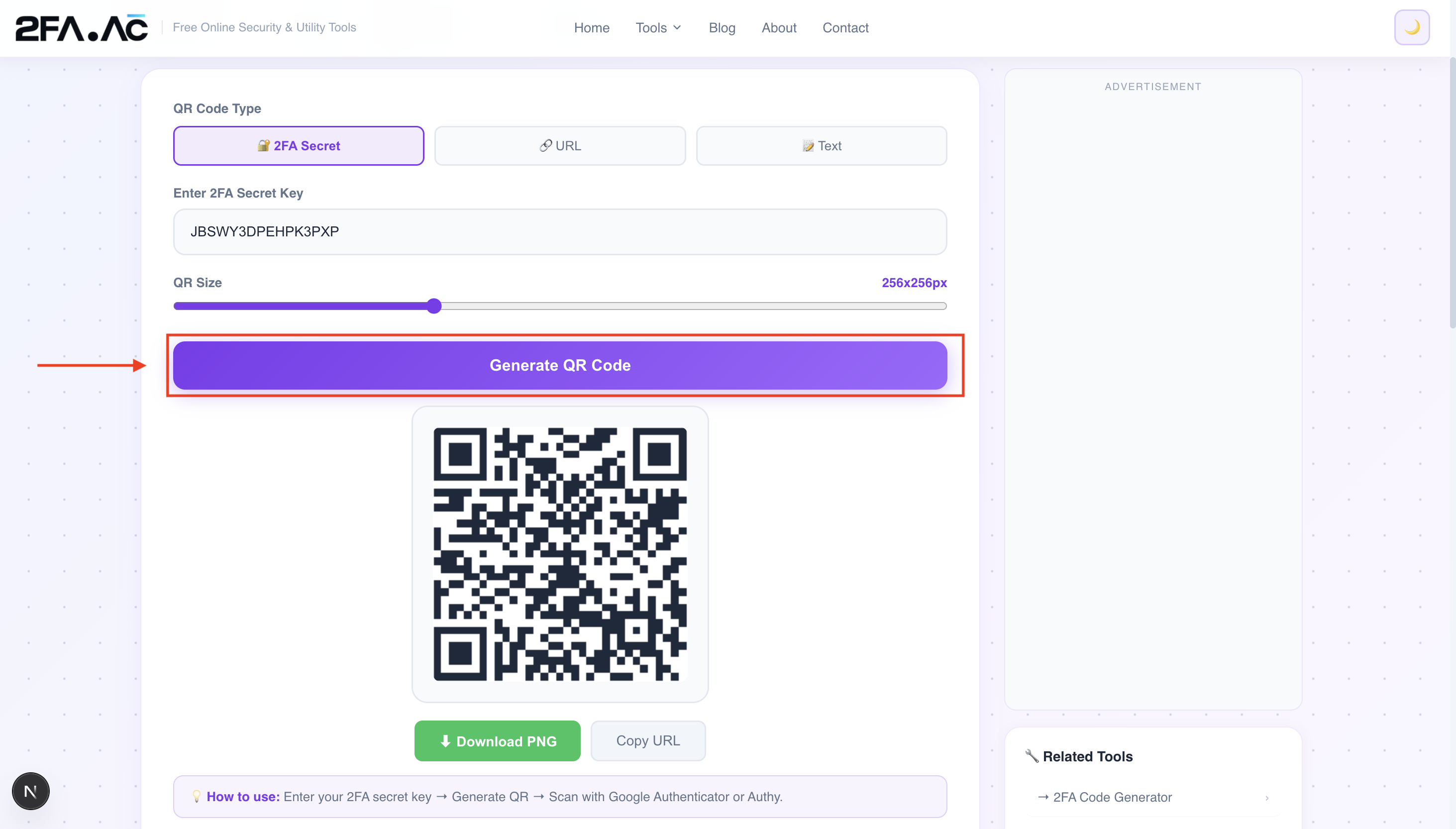
Click Generate. Your QR code appears instantly. You can now scan it with any authenticator app — Google Authenticator, Authy, Microsoft Authenticator — and it will start generating the correct codes immediately.
You can also download the QR code as a PNG if you want to save it, print it, or use it in a document.
QR Code Size — Does It Matter?
The generator lets you choose between different sizes. Here's a practical guide:
128px — tiny, for embedding in documents where it'll be viewed on screen at small size
256px — the sweet spot for digital use. Clear enough to scan easily on any modern smartphone.
512px — better for printing. If you're putting a QR code on a poster, business card, or printed guide, use this size or larger.
For 2FA setup specifically, 256px is fine — you'll be scanning it on screen from close range.
Is It Safe to Generate 2FA QR Codes Online?
This is the right question to ask, and the honest answer is: it depends entirely on the tool.
Any tool that sends your secret key to a server to generate the QR code is a security risk. Your 2FA secret is sensitive — if someone gets it, they can generate your authentication codes and bypass your 2FA entirely.
The QR Code Generator at 2FA.AC generates QR codes entirely in your browser. Your secret key is never transmitted to any server — the QR code is created client-side using the QR Server API, with your key encoded directly in the URL. Nothing is stored, logged, or sent anywhere except to the QR rendering service as part of the image URL itself.
If you're particularly security-conscious about this, you can also generate QR codes using offline tools or command-line utilities. But for most use cases, a browser-based tool that doesn't transmit your key server-side is perfectly safe.
QR Codes for URLs and Text
Beyond 2FA, QR codes are genuinely useful for a few everyday situations:
Sharing links
Create a QR code for any URL and people can scan it instead of typing a long web address. Useful for presentations, print materials, or anywhere you want to bridge physical and digital.
Sharing Wi-Fi passwords
Generate a QR code for your Wi-Fi network (the text format is WIFI:S:NetworkName;T:WPA;P:Password;;) and guests can connect by scanning — no more reading out a 20-character random password letter by letter.
Contact information
Encode your contact details in vCard format and print the QR code on a business card. Anyone who scans it can save your contact details directly to their phone.
What Authenticator Apps Work With These QR Codes?
Any app that supports the standard TOTP/Key URI format will work. That includes:
Google Authenticator — the original, available on Android and iOS
Authy — adds cloud backup and multi-device support
Microsoft Authenticator — good choice if you're in the Microsoft ecosystem
1Password — stores TOTP codes alongside your passwords
Bitwarden — open-source password manager with TOTP support
They all read the same QR code format and generate identical codes from the same secret key. The choice of app is about features like backup and multi-device sync — not compatibility.
The One Thing to Remember
Your 2FA secret key is as sensitive as your password. Treat it that way. Don't screenshot it and store it in your camera roll, don't paste it into a random website, and don't share it in a chat message.
If you need to generate a QR code from your secret key, use a tool that keeps the processing in your browser. And if you ever suspect your secret key has been exposed — change your 2FA settings immediately. Disable 2FA on that account and re-enable it, which generates a new secret key.
Ready to try it? Generate a QR code for your 2FA setup at 2FA.AC's QR Code Generator — free, instant, and completely private.
Frequently Asked Questions
Generate Your 2FA QR Code Instantly
Enter your secret key and get a scannable QR code in seconds — free, private, no signup.
Generate QR Code →